
Back to Tools and Features
Add Pages To Your Site
Extend your site with extra pages
Add a page:
Open the Pages & folders menu
Click the + button
Enter the title of the new page in the Page title field
Select a page type:
Default - A new page with no main content
Clone - The new page will copy the content of the page you are currently viewing
Home - The new page will have the same layout as the homepage
After selecting a page type click Done
Add a Folder
Open the Pages & folders menu
Click the + button
Select New folder
Enter the title of the new folder in the Folder title field
Click Done
Adding a page to a folder
Open the Pages & folders menu
Click the + button
Enter the title of the new page in the Page title field
Use the Location field to select the desired folder
Click Done
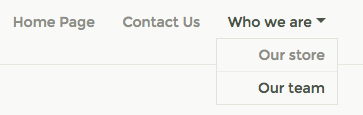
The result will be a drop-down menu item within your site navigation.